Scheduled Scans
Scheduled Scans
Rather than remembering to check, let Clean Rabbit look once a week and let you know when there is enough to be worth clearing. You stay in charge of what goes.
Download Clean Rabbit
Free · 10 MB · other platforms and system requirements
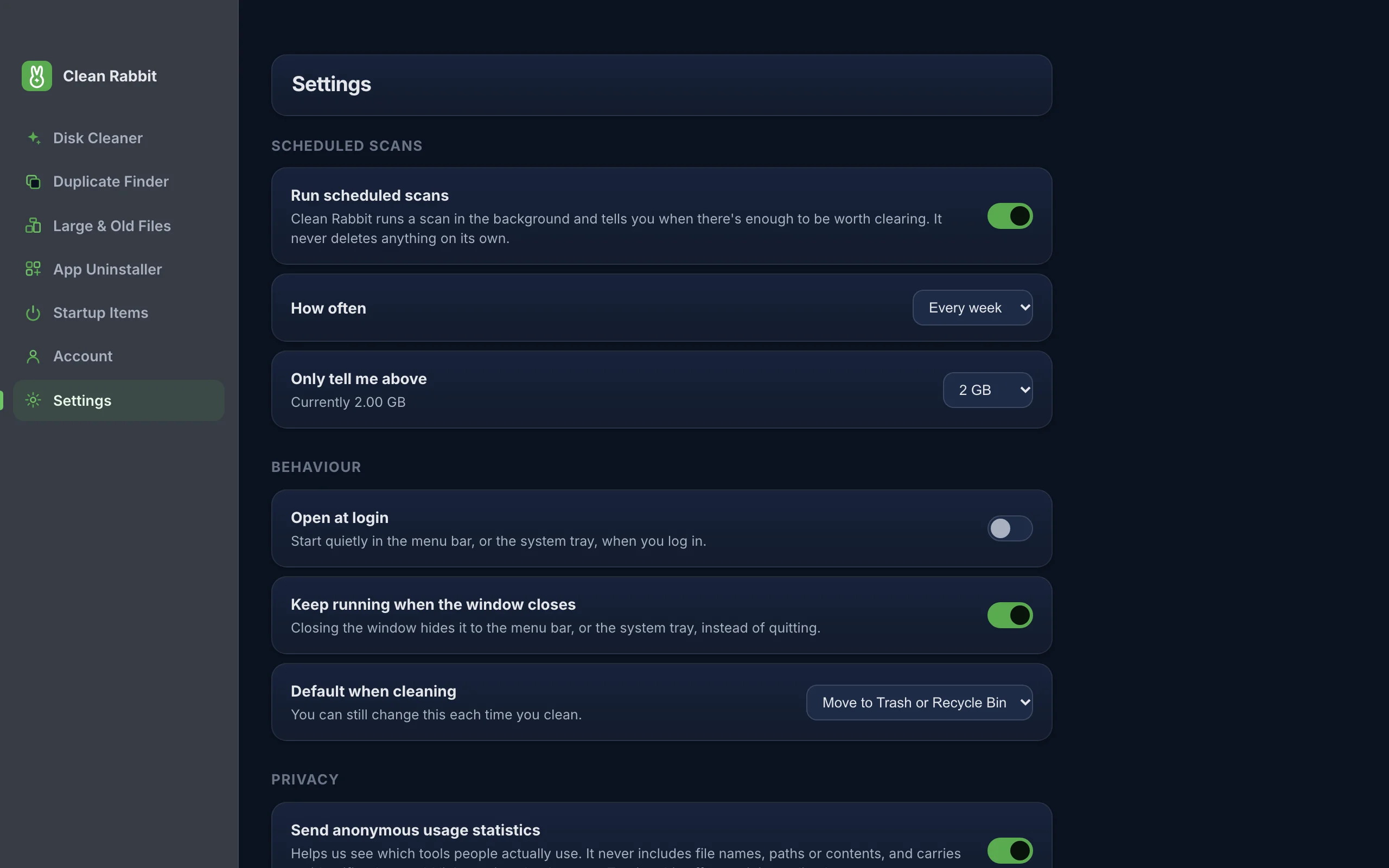
How it works
- Choose every day, every week or every month. Weekly is the default.
- Choose when to hear about it: above 500 MB, 1 GB, 2 GB or 5 GB. The default is 2 GB. Below it, you hear nothing.
- Above it, you get a notification saying how much there is to clear.
- Nothing is ever removed automatically. You open Clean Rabbit, review, and decide.
- Scheduled scans are off until you turn them on. Clean Rabbit then keeps running quietly in the menu bar or system tray so it can check.
Why notify only
Automatic deletion is where cleaners cause harm: a cache an app still needed, a download you were about to open. Keeping a person in the loop costs a few seconds a week and removes that risk.
Questions
How do I turn scheduled scans on?
Open Settings, turn on Run scheduled scans, then pick how often and the size that should trigger a notification. Turn it off the same way.
Does a scheduled scan send anything online?
No file names or paths leave your device. The scan and its results stay local.
Try Clean Rabbit
Free for Mac, Windows and Linux. ~10 MB, no card, no trial.
Download Clean Rabbit
Free · 10 MB · other platforms and system requirements