Disk Cleaner
Disk Cleaner
Scan for the caches, logs, temporary files and half-finished downloads that build up quietly, see exactly what was found, and clear only what you tick.
Free · 10 MB · other platforms and system requirements
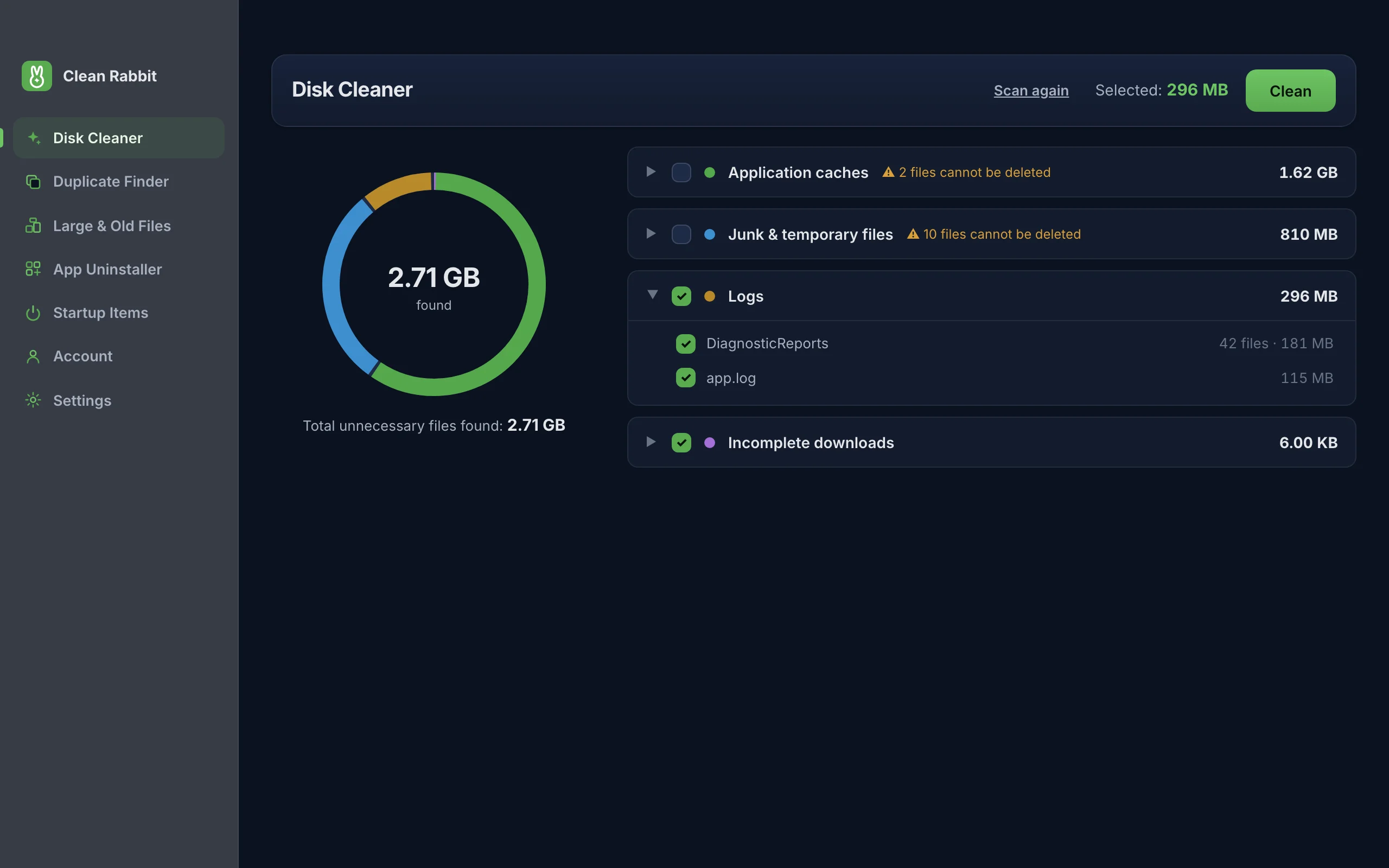
What it looks for
Results are grouped into four categories. The two lowest-risk ones are ticked for you; the other two wait for you to decide.
| Category | Ticked by default | What it is |
|---|---|---|
| Logs | Yes | Diagnostic text that apps write as they run. Rarely read, never needed to keep an app working. |
| Incomplete downloads | Yes | Downloads that stopped part way, such as .crdownload, .part and .partial files in your Downloads folder. |
| Application caches | No | Files apps keep to load faster. Safe to clear, but apps rebuild them, so the space comes back slowly. |
| Junk and temporary files | No | Leftovers in the system temporary folders and, on Windows, crash dumps and error reports. |
Where it looks on each system
| System | Folders scanned |
|---|---|
| macOS | ~/Library/Caches and ~/Library/Logs, plus stalled downloads in ~/Downloads |
| Windows | Your Temp folders, browser caches for Chrome, Edge and Brave, the Internet cache, Explorer thumbnails, DirectX and NVIDIA shader caches, crash dumps and Windows Error Reporting |
| Linux | ~/.cache and ~/.local/state, plus stalled downloads in ~/Downloads |
It stays inside your own user folders and the system temporary folder. System files, your documents and app data are never part of a Disk Cleaner scan.
Built to be hard to get wrong
- Nothing is removed until you review the list and press Clean.
- Anything changed in the last 10 minutes is skipped, so files an app is using right now are left alone.
- Open any category to see what is in it and how big each item is. Untick a single item or a whole category.
- Each clean asks where things go: to the Trash or Recycle Bin, which is the default and recoverable, or deleted permanently.
- The scan runs on your device. File names and paths are never uploaded.
How to use it
- Open Clean Rabbit and choose Disk Cleaner.
- Press Scan this device. A typical scan takes a few seconds.
- Open each category to see the files. Tick or untick what you want.
- Press Clean, choose Trash or Recycle Bin (the default) or permanent deletion, and confirm.
Questions
Is it safe to clear caches?
Yes. A cache is a copy an app can rebuild. Clearing it can make an app slightly slower the next time it opens while it rebuilds. That is why caches are not ticked by default. See is it safe to delete cache files.
Why did the space come back after a few days?
Apps refill their caches as you use them. Logs and stalled downloads do not come back on their own, which is why they give the most lasting gain.
Does it clean browser history or cookies?
No. Browser caches on Windows are cleared, but history, cookies, saved passwords and sessions are left alone so you are not signed out of anything.
Try Clean Rabbit
Free for Mac, Windows and Linux. ~10 MB, no card, no trial.
Free · 10 MB · other platforms and system requirements