Large & Old Files
Large & Old Files
Most lost space is a handful of big files you forgot about: old videos, disk images, archives. Pick a folder and see them sorted by size, with how long since each was last changed.
Free · 10 MB · other platforms and system requirements
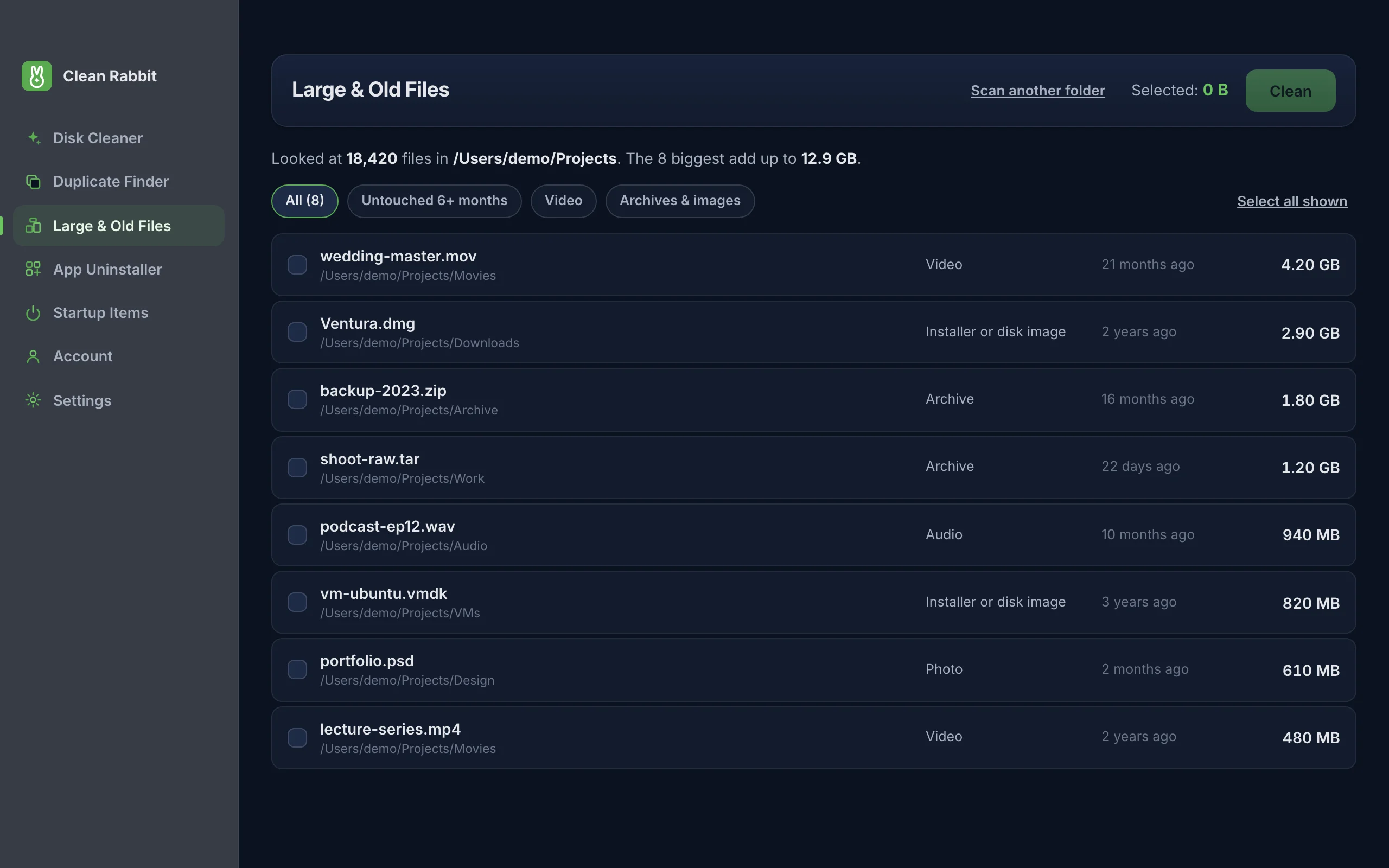
What you see
- Every file of 50 MB or more in the folder you chose, largest first, up to the 500 biggest.
- How many days since each file was modified, so something untouched for two years stands out from last week's project.
- The full location and a type (video, audio, archive, installer or disk image), so you know what it is before deciding.
- Filters for Untouched 6+ months, Video, and Archives and images, to narrow a long list quickly.
Why this often beats a cleaner
Caches and logs are usually measured in hundreds of megabytes. One forgotten screen recording or virtual machine image can be tens of gigabytes. Looking at the largest files first is often the quickest way to free real space.
Common finds
- Installers and disk images (.dmg, .iso, .exe, .msi) you already used.
- Screen recordings and exported videos.
- Zip archives you extracted and never deleted.
- Old phone backups and virtual machine disks.
How to use it
- Open Clean Rabbit and choose Large & Old Files.
- Press Choose folder. Your home folder is a good start.
- Use the filters to narrow the list, for example to files untouched for six months.
- Tick what you no longer need, press Clean and confirm.
Questions
Why 50 MB?
Below that, you need a great many files to make a real difference, and the list gets too long to review. Duplicate Finder and Disk Cleaner are better for lots of small files.
Does "old" mean I have not opened it?
It means the file has not been modified. Many systems do not reliably record when a file was last opened, so modified date is the dependable signal.
Try Clean Rabbit
Free for Mac, Windows and Linux. ~10 MB, no card, no trial.
Free · 10 MB · other platforms and system requirements